 orgbit
After seeding a sandbox, check the records you actually need: did the Accounts arrive, and are the Contacts attached to the right parents? A saved SOQL query makes that check repeatable. Once the results look right, export a small CSV for review.
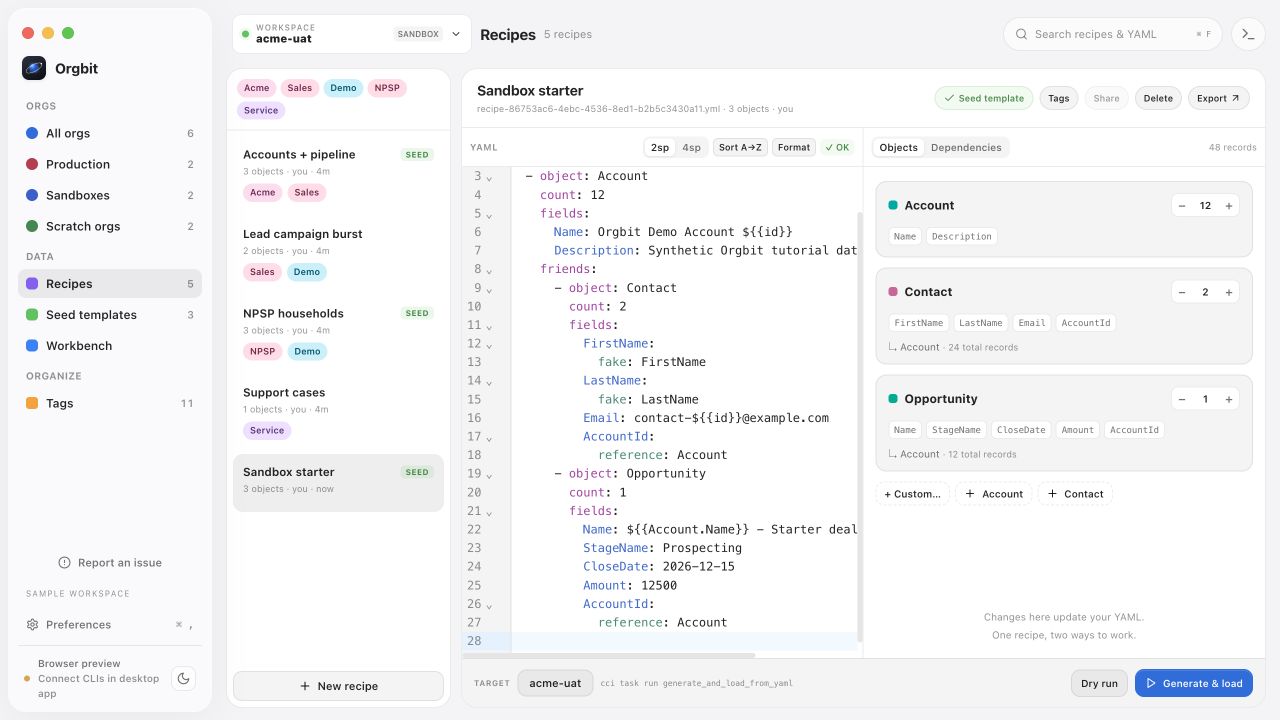
This walkthrough uses the 48-record sandbox starter recipe. The queries target its Orgbit Demo Account naming prefix. You can use the same pattern with your own test-data marker.
Example boundary: the screenshot shows a saved query in Orgbit’s browser preview with a fictional sandbox selected. Query execution and CSV export require Orgbit Desktop and an authorized Salesforce org. The expected counts below assume one successful recipe load with no earlier matching records. They are not captured live query results.
Choose the org before writing the query
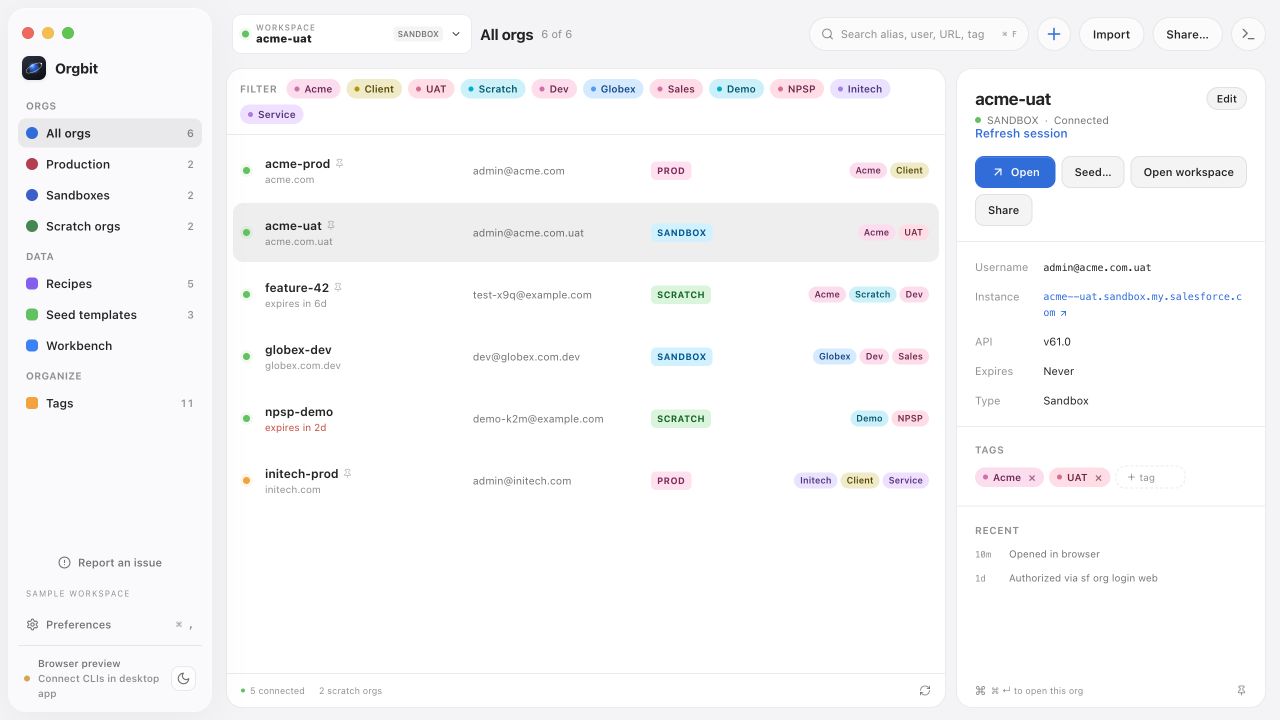
Open the workspace selector, choose your sandbox, and open Workbench. Check both the alias and environment type. A familiar query can return very different information in another org.
For this example, leave Tooling API off. We are querying ordinary business records: Account and Contact. Tooling API serves a different set of development and tooling objects.
Name the query Demo accounts — verification. A descriptive name tells you what the query checks when you return next week.
Start with Data Explorer when you do not know the fields
In Workbench, choose Data Explorer & Scripts, then Objects in the side panel. Search for Account and choose it from the object list. Expand a field to inspect its type, required or read-only status, relationship target, and available picklist values.
Select Id, Name, and Description, then choose New query (3 fields). Orgbit creates a SOQL draft with those fields and LIMIT 100. This starts the query; it does not run it. Add the demo filter below before querying your sandbox.
The object list follows the selected org and the Tooling API setting. Leave Tooling API off for these Account and Contact examples. After adding a custom field in Salesforce, use Refresh schema if the list needs updating.
Query only the demo Accounts
Enter this query:
SELECT Id, Name, Description
FROM Account
WHERE Name LIKE 'Orgbit Demo Account %'
ORDER BY Name
LIMIT 100
The WHERE clause narrows the result to our demo prefix. ORDER BY Name makes the list easier to scan; it sorts text, so “Account 10” appears before “Account 2.” LIMIT 100 puts an explicit ceiling on this inspection query.
Save the query. In the desktop app, choose Run query. If you have selected part of the source, Orgbit runs that selection, so clear the selection when you intend to run the whole query.
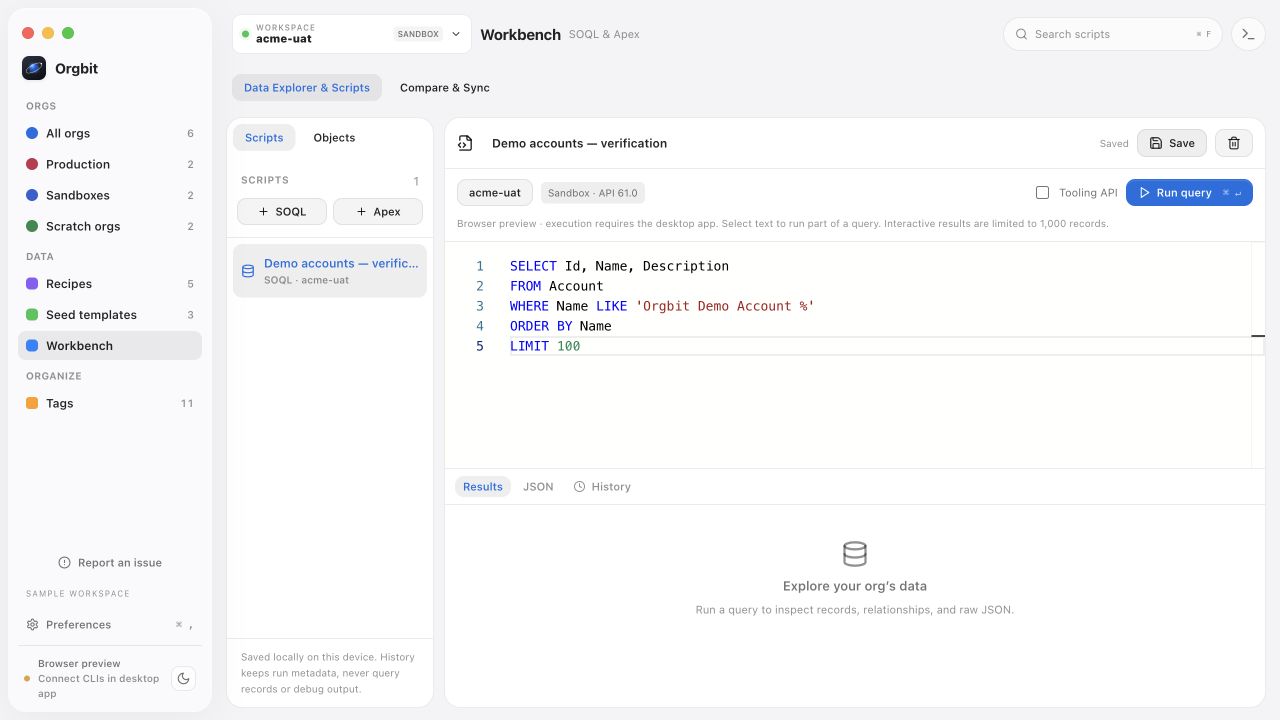
The Results tab is useful for scanning rows; JSON is useful when you want to inspect the returned structure. Keep your first query short enough to understand each selected field.
Inspect a record without losing your query
Use the results table to sort or filter the records already loaded. These controls work locally on that result set; they do not fetch additional Salesforce records. Change the SOQL query and rerun it when you need a different dataset.
Choose the record number in the table to inspect the fields returned by your query. Relationship values appear when included in that query; opening the detail view does not fetch all fields or related records automatically.
To inspect Account children, run a parent-to-child query such as:
SELECT Id, Name, (SELECT Id, FirstName, LastName FROM Contacts)
FROM Account
WHERE Name LIKE 'Orgbit Demo Account %'
LIMIT 10
Expand the returned child records to inspect them or choose Export these child records. If the result is marked incomplete, the child view and export contain only the loaded child records. Which fields and records are visible also depends on the connected user’s access.
Verify counts and parent relationships
After one complete load of the starter recipe, the expected totals are 12 Accounts and 24 Contacts. Run these queries separately:
SELECT COUNT()
FROM Account
WHERE Name LIKE 'Orgbit Demo Account %'
SELECT COUNT()
FROM Contact
WHERE Account.Name LIKE 'Orgbit Demo Account %'Then inspect a few relationships:
SELECT Id, FirstName, LastName, Email, Account.Name
FROM Contact
WHERE Account.Name LIKE 'Orgbit Demo Account %'
ORDER BY Account.Name, LastName
LIMIT 100
Here, Account.Name follows the Contact’s parent relationship. You do not need to export both objects and join the files just to check the parent’s name.
If you see too many records, check whether the recipe ran more than once or whether older data uses the same prefix. Too few can indicate a partial load or a permissions difference. Use the generation/load log to investigate before repeating the load.
The Opportunity check uses the same relationship filter and should return 12 after one successful load:
SELECT COUNT()
FROM Opportunity
WHERE Account.Name LIKE 'Orgbit Demo Account %'
Export the returned results to CSV
Run the Account detail query again, inspect the returned rows, and choose CSV in the results toolbar. Save the file with a name that records the environment and purpose, such as sandbox-demo-accounts.csv.
Orgbit’s interactive query results are limited to 1,000 records. The CSV button exports all loaded query results, including rows hidden by a local table filter. Export filtered CSV in the table exports only matching loaded rows. Neither option fetches extra records; it is not a full-org export or backup. Use a dedicated bulk-export workflow when you need a complete large dataset.
Select only fields needed for the review. These examples use synthetic data, but queries against your real org can return customer information. Share the resulting file according to the same rules you apply to the underlying Salesforce records.
Save a useful verification set
Keep three queries with clear names: demo Accounts, Contact relationships, and record counts. Orgbit associates saved queries with their target org, which helps keep a sandbox investigation separate from work in another environment.
History records execution metadata. Use saved queries for the reusable source, and export results you deliberately need to retain. When the dataset changes, rerun the checks rather than assuming a previous CSV is still current.
For language syntax and query behavior, consult the Salesforce SOQL reference. For the dataset used here, start with the Snowfakery tutorial.
Compare the same records in another org
When you need to review differences and apply a small set of changes, use Compare & Sync. Its matching keys and whole-object limit are separate from this SOQL workflow: a WHERE clause here does not restrict a later comparison. Start with the comparison guide’s small, synthetic Account example.