 orgbit
Working across several Salesforce environments is easier when you can answer three questions at a glance: which client is this, what kind of environment is it, and which org will receive the next action?
Orgbit brings org organization, Data Explorer, Compare & Sync, saved queries, and test-data recipes into one desktop workspace. This guide uses a fictional set of orgs to show a small naming and navigation system you can apply to your own work.
Synthetic workspace: every org name, username, and connection status in these screenshots is sample data from the browser preview. The screenshots demonstrate the interface, not a connection to a customer environment.
Give each environment a clear alias
Use an alias that combines the project and purpose. For example:
| Example alias | Environment | Purpose |
|---|---|---|
acme-prod |
Production | Production support |
acme-uat |
Sandbox | Acceptance testing |
feature-42 |
Scratch | Short-lived feature work |
globex-dev |
Sandbox | Another project’s development |
Keep the pattern short and consistent. An alias is a convenient label; the username, instance, and environment details are the information to check when selecting a destination.
Orgbit uses Salesforce CLI for authentication. The desktop setup can discover existing authorized orgs. Add org also lets you save an entry for later, but saving an entry does not authenticate it. Finish authorization before expecting queries or data loads to work.
Use tags to describe the work
An environment type tells you whether an org is production, a sandbox, or scratch. Tags can answer different questions: which client owns the work, which team uses it, or whether it is part of a demonstration.
For the example, Acme groups related environments and UAT identifies the testing context. Keep tag names consistent; a small shared vocabulary is easier to scan than a new tag for every task.
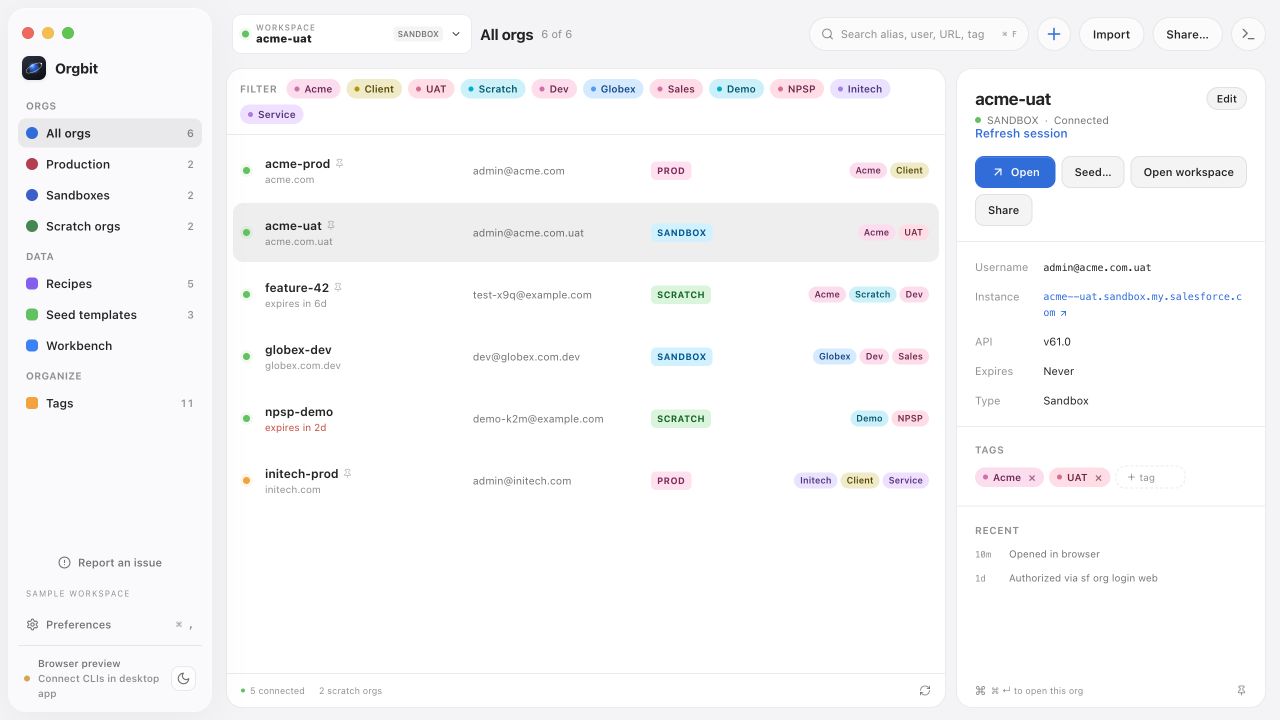
Use the sidebar to narrow by environment type, then search by alias, username, URL, or tag. Pin the environments you use often so they remain easy to recognize. Search is especially useful when several clients use similar sandbox names.
Distinguish selection from the workspace target
Selecting a row shows that org’s details. Open workspace makes that org the active workspace context. You can also choose it directly from the workspace selector at the top.
That distinction matters when you are inspecting one org while working in another. Before running a query or loading a recipe, check the active target in the workspace and the operation’s own controls.
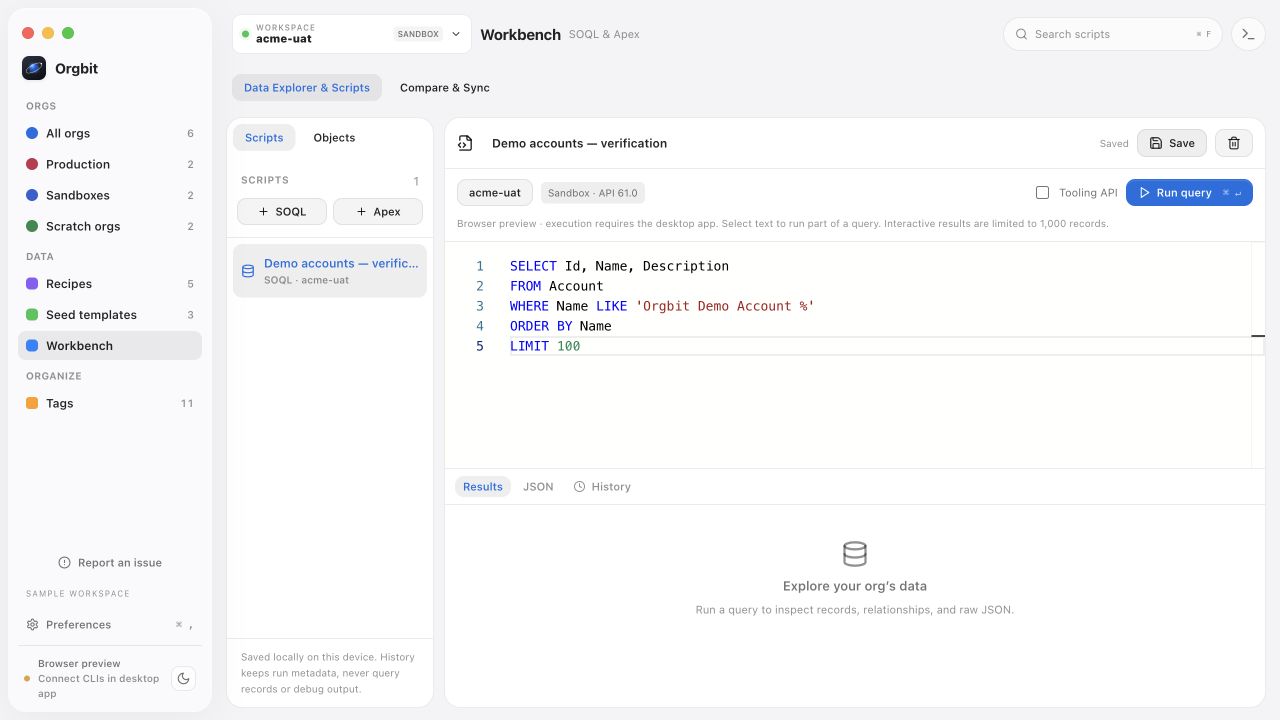
The Workbench keeps saved queries and scripts associated with an org. Use names such as Demo accounts — verification or Contacts missing an Account so the purpose is visible without opening each item.
Explore one org or compare two deliberately
For a single environment, open Workbench → Data Explorer & Scripts → Objects. Browse the schema, select fields to draft a query, and inspect the returned records. The SOQL and Data Explorer guide walks through a small Account and Contact dataset.
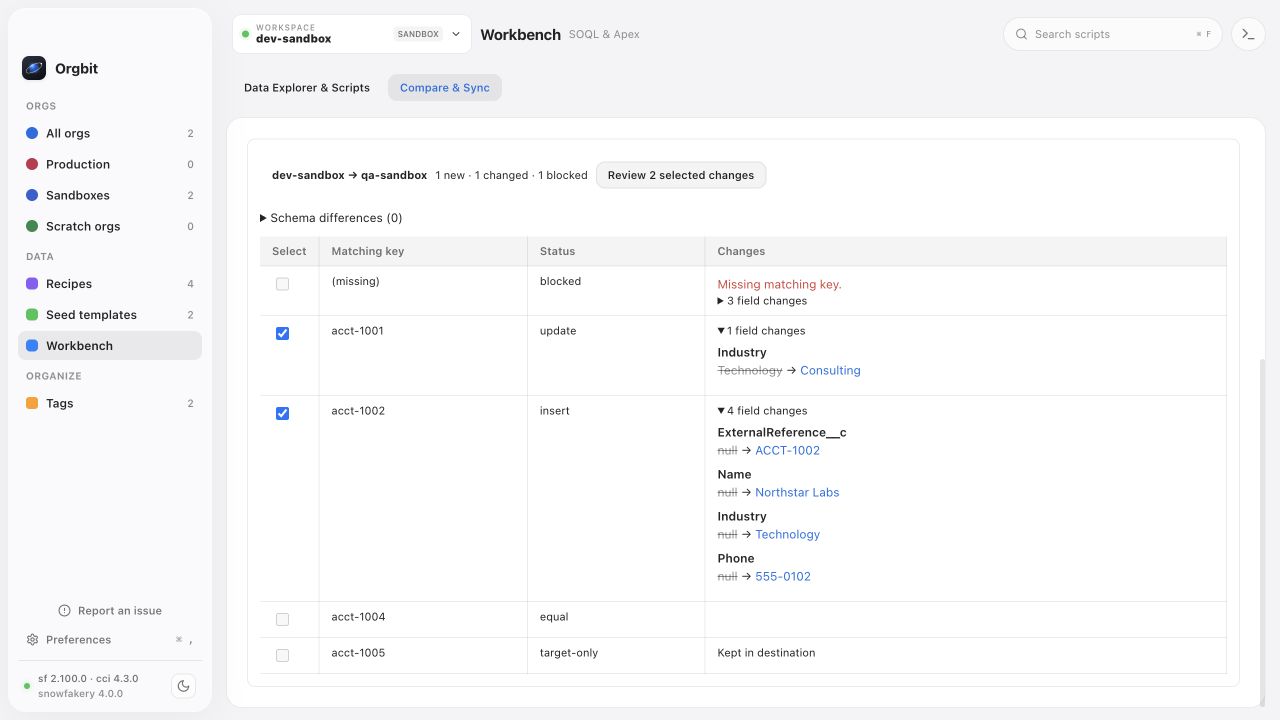
For a comparison, choose Compare & Sync and check both its source and destination selectors. Its destination is an explicit choice: do not infer it from a selected row in the org list. Review the destination environment and type the requested alias before applying changes.
Compare & Sync handles selected inserts and updates for one object, with no more than 1,000 total records in that object in either org and up to 50 selected writes per run. It needs a shared matching key, including a unique writable Text External ID in the destination for writes. Follow the two-org comparison walkthrough before moving records.
Keep test data near the workflow
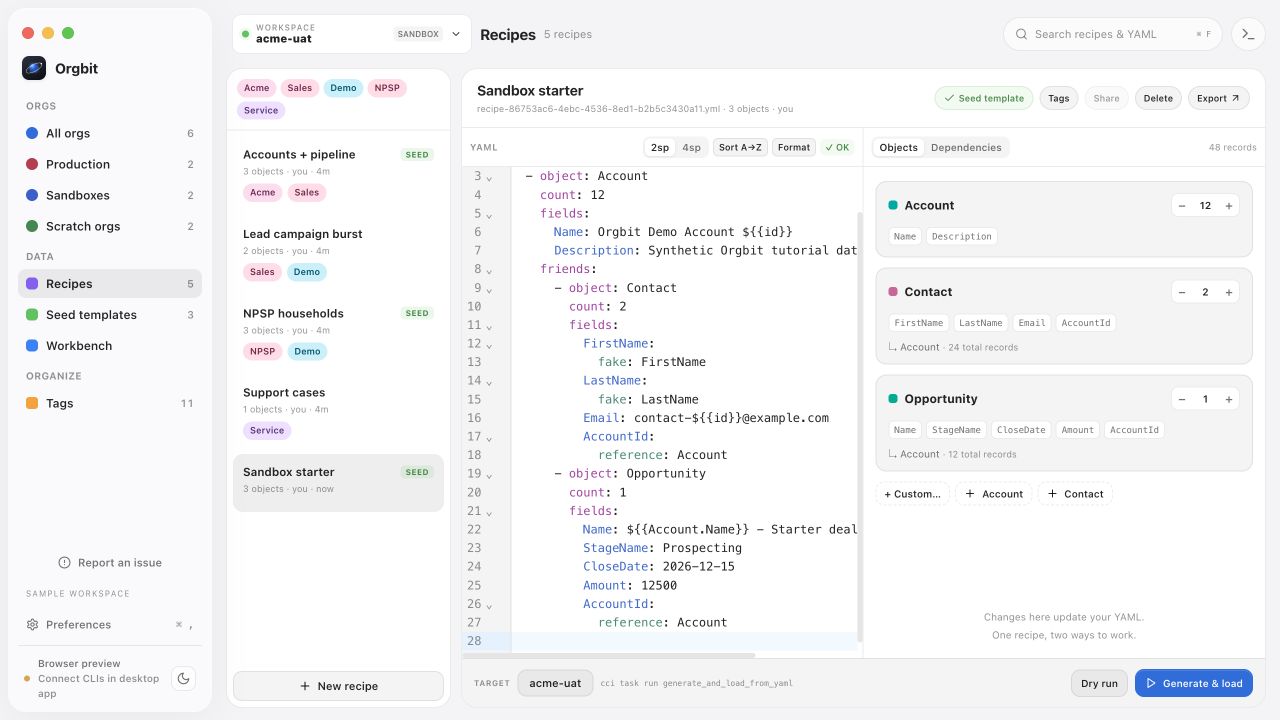
For a repeatable demo, start with the sandbox starter recipe. Its 48 related records are small enough to inspect manually.
Open the sandbox workspace, review the recipe’s total, and run a local dry run in the desktop app. Then check the target again before Generate & load. After a successful load, run the verification queries and inspect a few relationships.
Mark a reusable recipe as a Seed template. The same recipe can support another disposable environment, but each target still needs its own authorization and compatible fields. Recipe reuse does not imply that every org has the same configuration.
Respond to expired sessions explicitly
If an org’s session has expired, select it and review its status. Refresh session attempts to refresh the existing Salesforce CLI session; revoked authorization may require signing in again.
A refresh failure is a reason to inspect the connection, not to change the environment label. In particular, relabeling production as a sandbox does not turn it into a disposable test environment. Production loads are checked against Salesforce’s environment metadata in the desktop workflow.
For scratch orgs, keep the expiry visible as part of your daily check. Save reusable recipes and queries before an environment disappears. A local workspace can retain your work, but it cannot extend the life of an expired org.
Make the daily sequence predictable
Start by finding the org, then open its workspace, confirm the environment, and choose the saved query or recipe for the task. Finish by checking the output and saving useful work for the next session.
The org list helps you navigate. The workspace target supplies execution context. Keeping those two responsibilities clear makes the workflow easier to explain to a colleague and easier to repeat yourself.
To set up the authentication tool Orgbit uses, see Salesforce CLI. To try the example dataset, download the synthetic starter recipe.