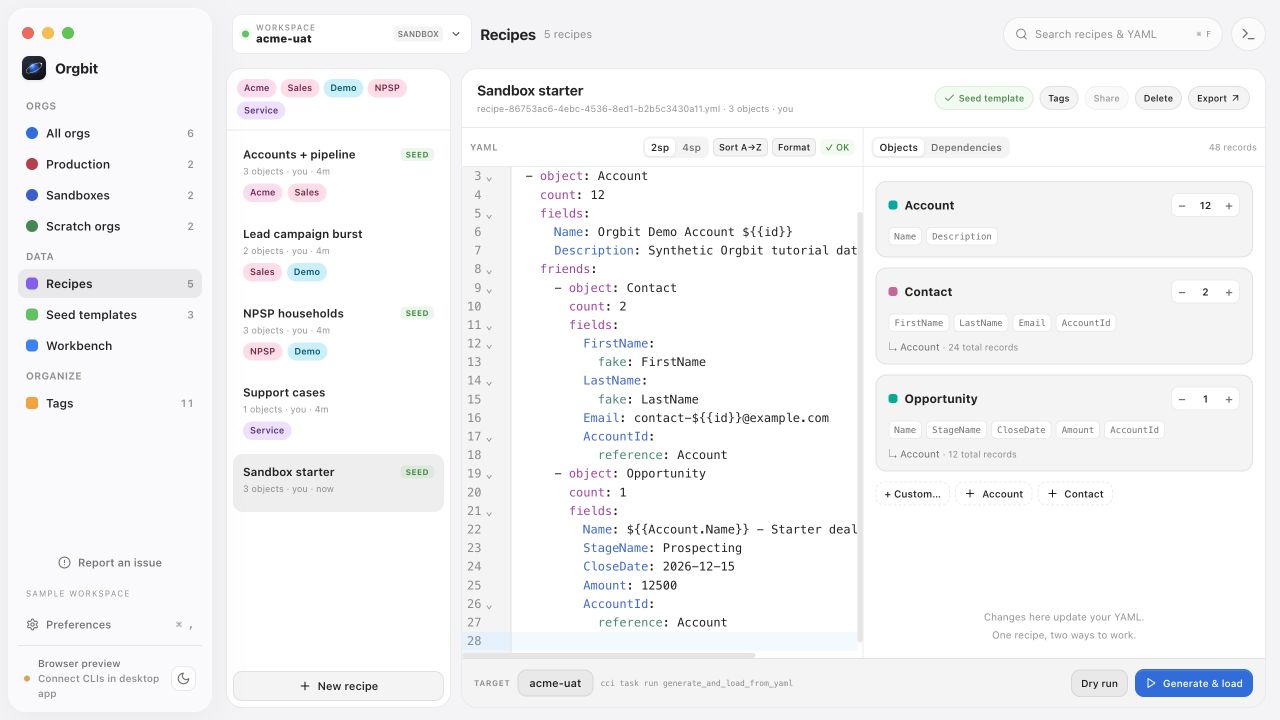
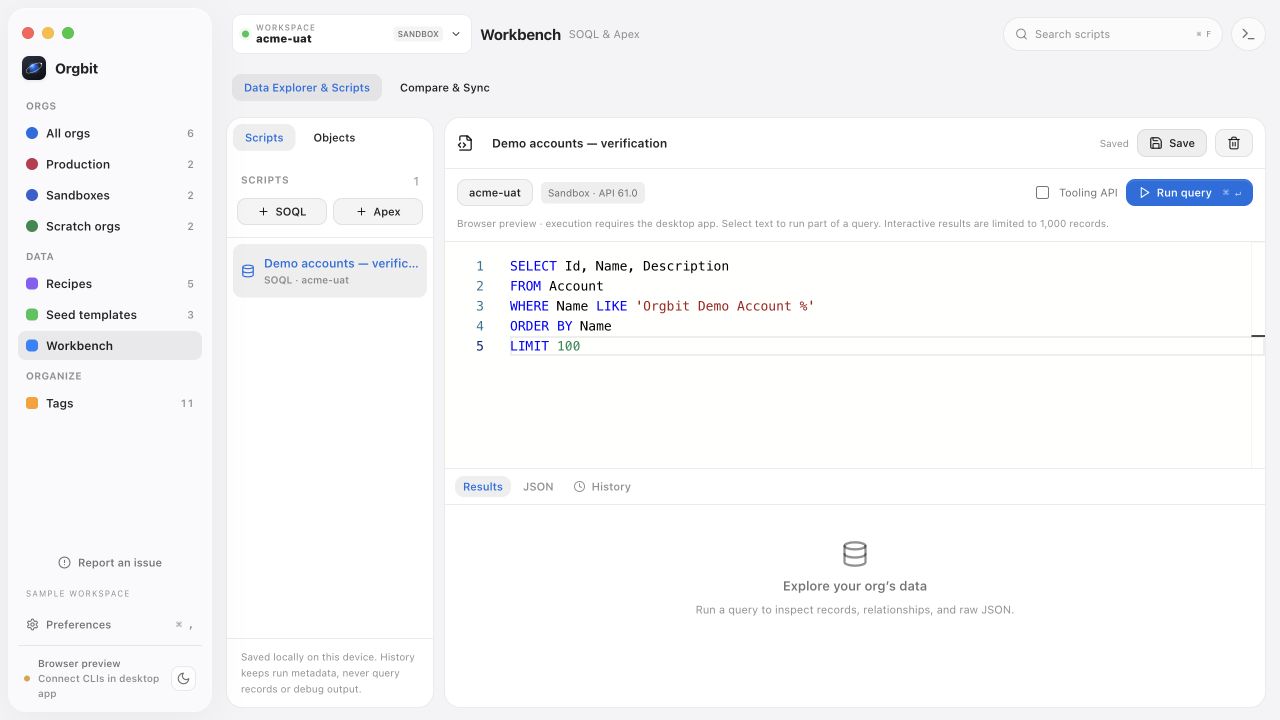
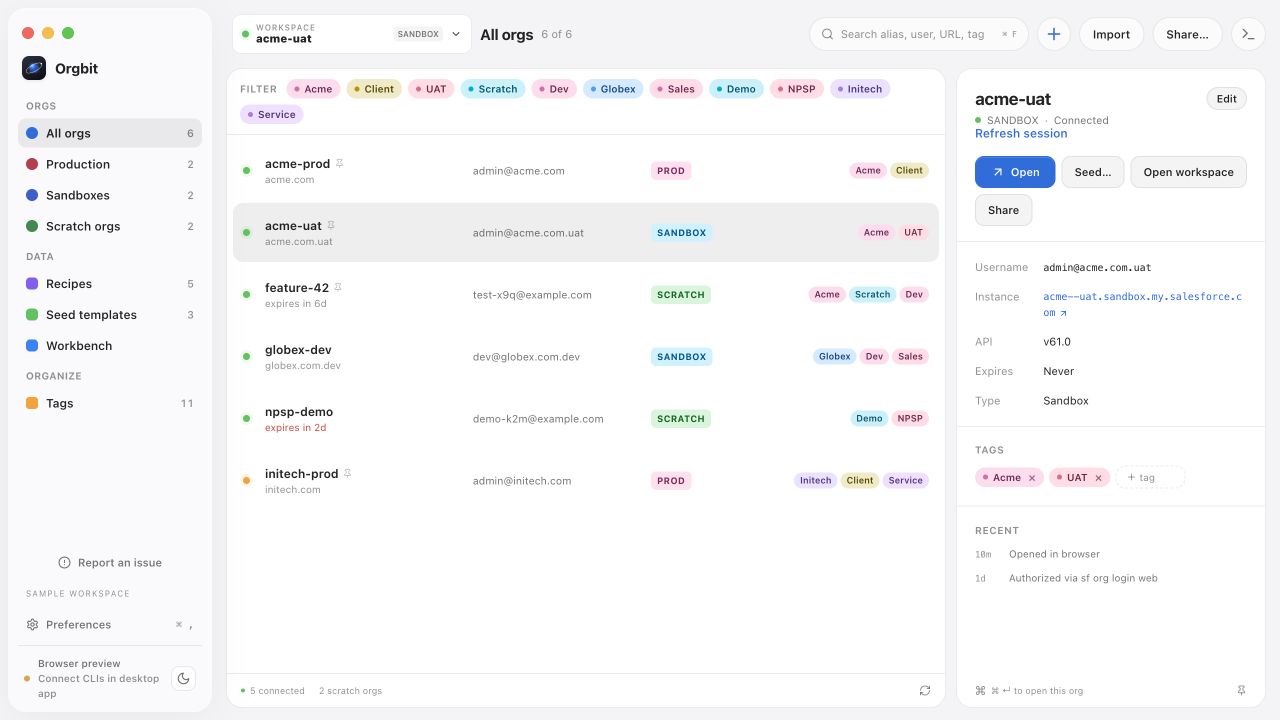
 orgbit
Moving a few records between a development org and a QA sandbox can take longer than expected when you have to find each record, compare fields, and copy changes by hand. Orgbit Desktop’s Compare & Sync reviews one object in two connected orgs, matches records by a shared key, and lets you choose a limited set of inserts and updates.
Start in two disposable development or test orgs. The screenshots show the real Orgbit Desktop application, using synthetic Salesforce responses for the fictional sandbox aliases and Account records. Check that your own test orgs accept the example field values and include any custom fields required for an insert.
Prepare a shared matching field
Salesforce record IDs differ between orgs, so use a value that both orgs share. In this example, the Account field is ExternalReference__c. Create or confirm this field in Salesforce Setup in both orgs, using the same API name and compatible Text type. In the destination org, it must be a writable, unique Text External ID. The Salesforce user connected to Orgbit needs permission to read the records and write the fields you plan to sync.
Use stable values such as ACCT-1001 and ACCT-1002 in both environments. Check that values are present and unique in the destination. The source field needs matching values and must exist in both orgs; the destination’s External ID setting is what enables safe matching for writes. The matching field must exist in both orgs before comparison. When it exists but lacks the required External ID, uniqueness, or write settings in the destination, comparison remains available while syncing is blocked.
Choose the two orgs and Account fields
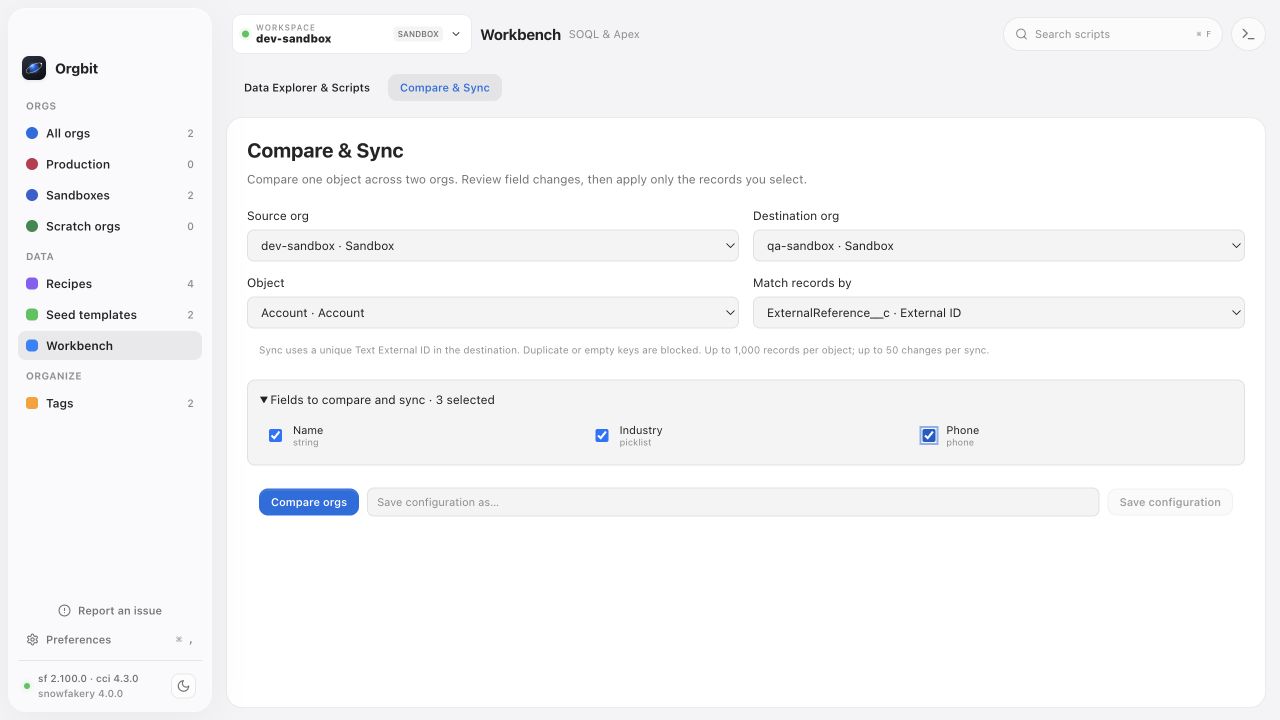
Open the workspace in Orgbit Desktop and make sure both Salesforce orgs show as connected. Open Workbench → Compare & Sync, then choose a source and a different destination. The source is read for values to compare; the destination is where selected inserts or updates will be applied.
Choose Account as the object. Under Match records by, choose ExternalReference__c. Select the fields you want to compare and, if needed, sync—for example, Name, Industry, and Phone. The matching key is used to pair records and is not itself part of the selectable field list.
For this small example, imagine the source contains:
| ExternalReference__c | Name | Industry | Phone |
|---|---|---|---|
| ACCT-1001 | Acme Services | Consulting | 555-0101 |
| ACCT-1002 | Northstar Labs | Technology | 555-0102 |
| (blank) | Summit Supply | Manufacturing | 555-0103 |
The destination has ACCT-1001 with Industry Technology, no ACCT-1002, and no Summit record. Orgbit can identify Acme as an update and Northstar as a new record. The source Summit record is blocked because its matching key is missing; it cannot be safely paired.
Review the comparison before selecting changes
Choose Compare orgs. Orgbit shows new, changed, equal, destination-only, and blocked records, along with field differences and any schema differences. Review the source and destination aliases at the top of the results so you know which way data would move. Destination-only records are kept.
In the example, select the Acme update and Northstar insert if both are intended. Do not select blocked rows; they cannot be applied. A duplicate or empty key, incompatible or unwritable field, missing required value, or unresolved supported parent relationship can block an affected record. Fix the underlying Salesforce data or permissions, then compare again.
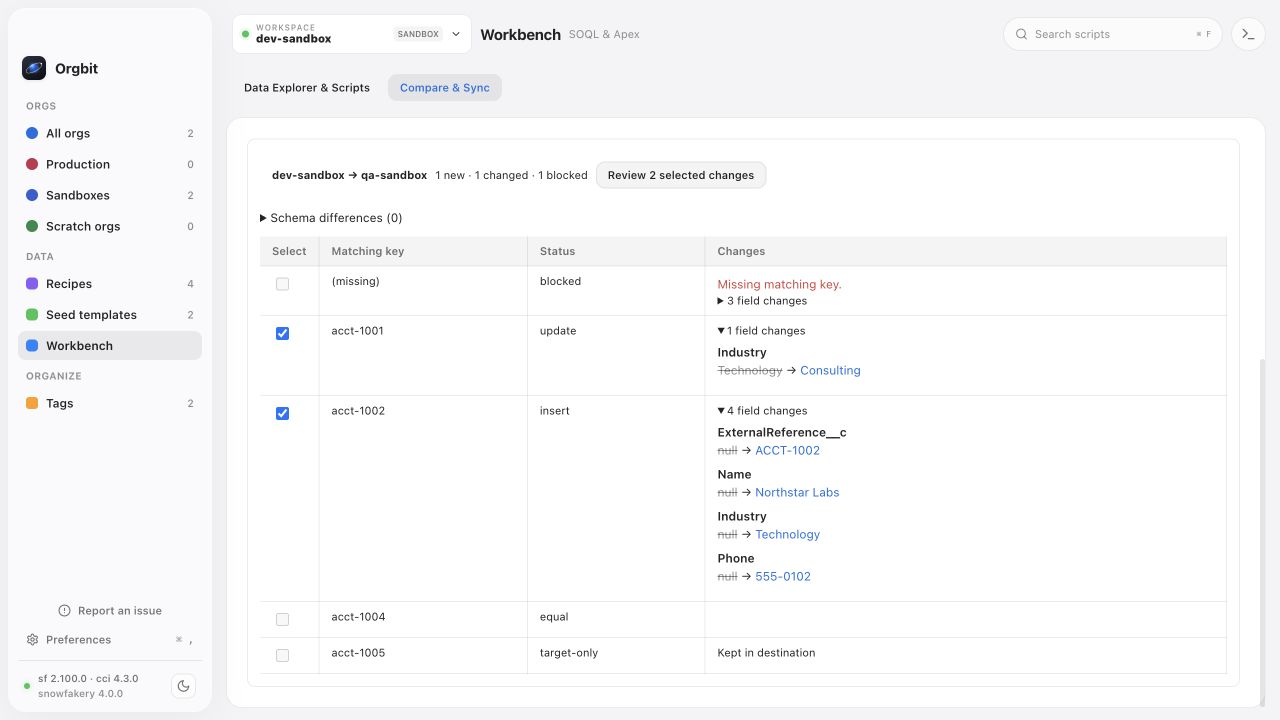
The comparison reads the complete dataset for the selected object in each org. Each org must have no more than 1,000 records for that object; larger objects cannot be narrowed with a filter in this workflow. Choose a smaller object or prepare a dataset that fits the limit before comparing. A sync can apply up to 50 selected inserts or updates at a time.
Confirm and apply selected changes
After reviewing the rows, continue to the confirmation sheet. It lists the records and fields selected for writing. Check the destination alias and environment again.
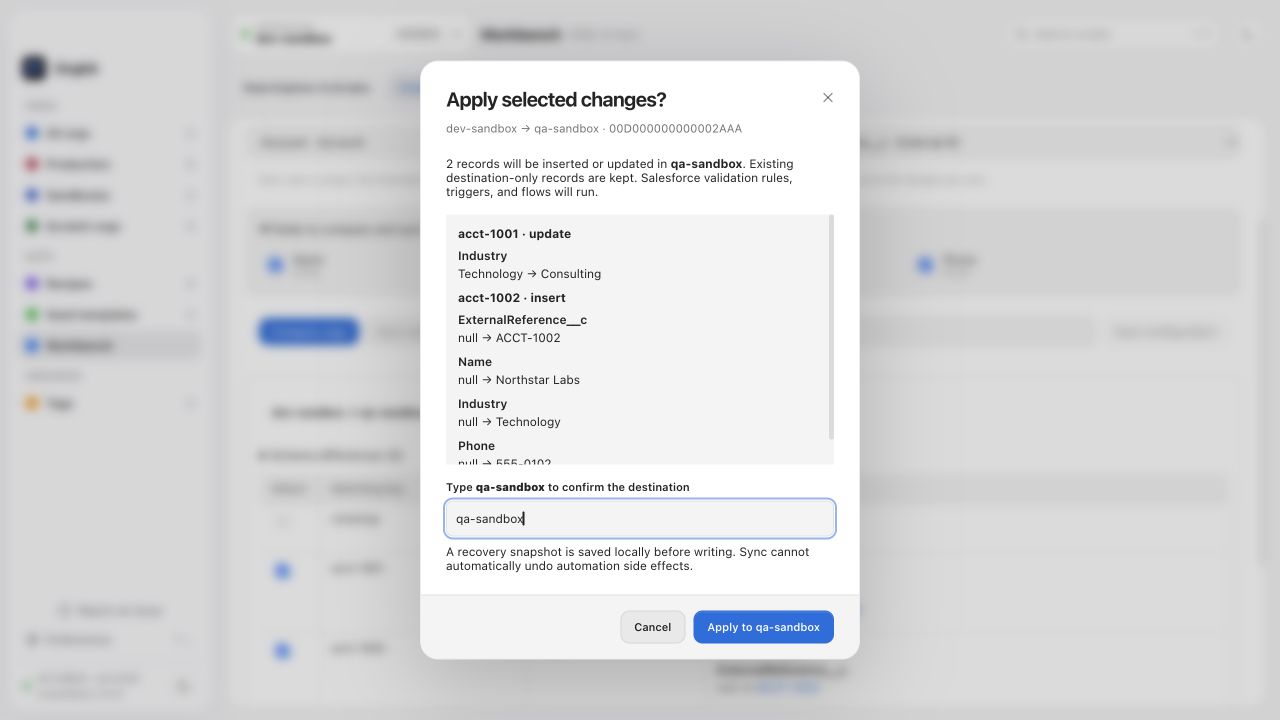
For a production destination, Orgbit marks it as production. To proceed, type the destination alias exactly as shown and choose Apply to the displayed destination alias.
Immediately before writing, Orgbit compares the org data and relevant relationships again with the preview. If data, permissions, or relationships changed, it stops and asks you to compare again. For updates, it also checks the destination record’s modification timestamp as it writes. Salesforce validation rules, flows, and triggers still run on the destination and may affect records.
Sync is one-way, from the selected source to the destination. It inserts or updates only the records you selected. It does not delete destination-only records, deploy metadata, run on a schedule, or sync in both directions. The local recovery snapshot is a record of the operation; it cannot automatically undo Salesforce writes or automation side effects.
Check the result and handle uncertainty
Orgbit reports whether selected records match the source after the operation and shows a local recovery snapshot path. This local journal includes the selected Salesforce field values; handle it with the same care as an export of those records. If a request has an uncertain result, or verification says records still differ, do not assume that retrying is safe. Compare the orgs again, inspect the result and snapshot, and decide what remains to be done. A network interruption can leave Salesforce with a write that Orgbit could not confirm, and the snapshot does not roll it back.
For a repeatable query-based check after the sync, see Run and export a Salesforce SOQL query. To confirm the selected workspace and distinguish sandbox from production, see Manage multiple Salesforce orgs.